
A statistically proven way to increase the conversion rate of your emails is by including a Call-to-Action (CTA). The button element encourages your audience to take action, whether it's to visit your website, download a resource, or make a purchase.
Adding A Button Element
Drag the button element from the menu on the left side.
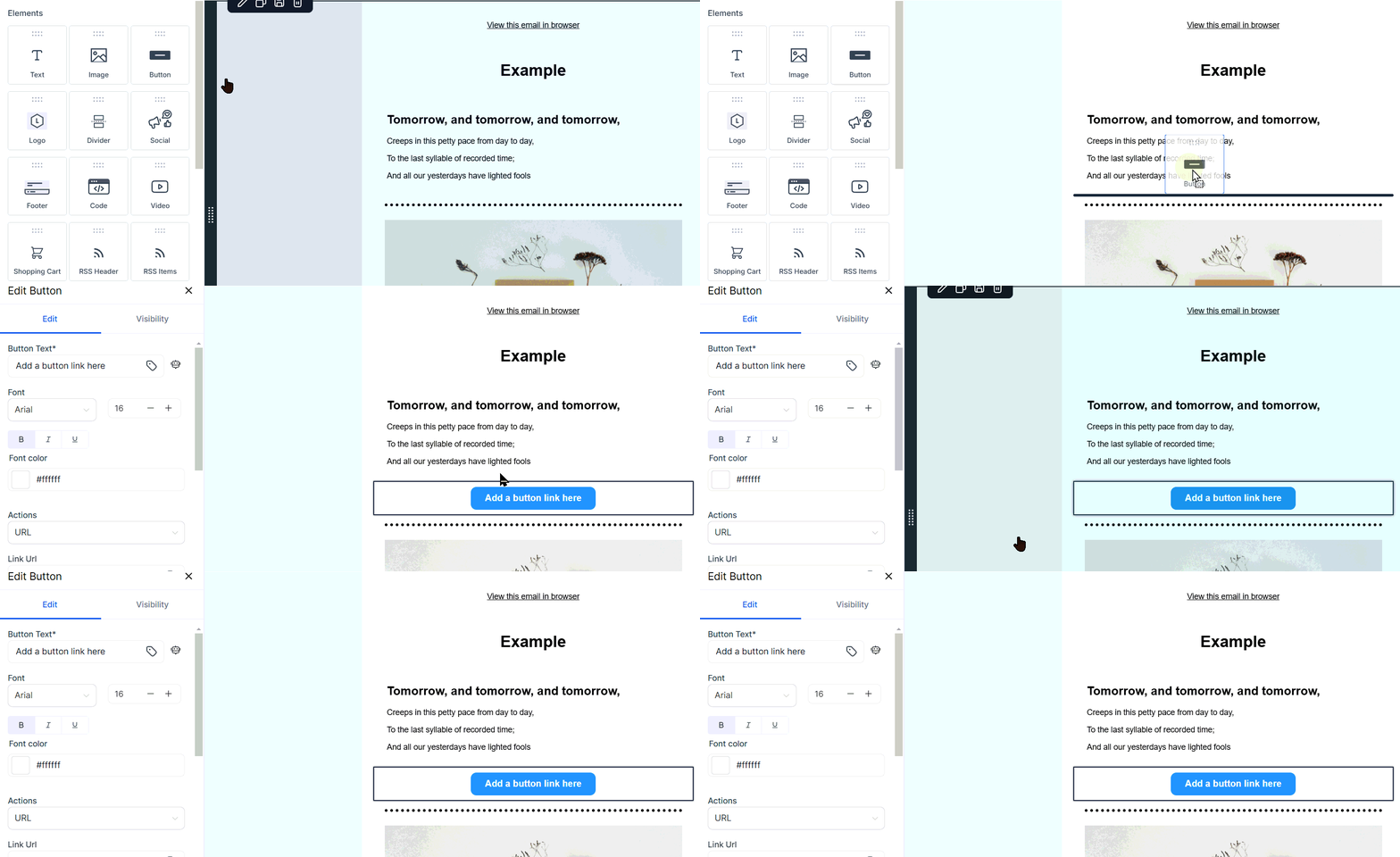
Once placed the element's settings will pop up where the element menu is. Additionally, you can access the edit options by clicking the pencil icon.

Editing The Button Element
Enter the button text to start. Then adjust the font to your liking by selecting the typography, font size, typographical emphasis, and color.

Choose the button action from the dropdown menu, where you can select URL, mail, file, telephone, or other and fill in the appropriate information for your selection.

Pick an alignment option for your button. If you would like your button to take the full width of the email, you can use the toggle to turn it on.

Click the color picker to select a color to make your button pop. If you don't see a color you like, click + Add or enter the hex code.

Toggle on the border option to add and customize your button's border.

To adjust the radius around your button, use the number field or the slider to adjust the radius to fit your needs.

Finally, adjust the padding around your button - you can adjust the padding on the top, bottom, left, and right to ensure the best positioning for your button.

Use this feature to drive engagement and optimize your email campaigns for success.